
How to Free Up Space on Windows/Mac to Download Firmware 4uKey
While using 4uKey to remove screen passcode or Apple ID, you have to download the firmware package which takes up a large space on your computer. If there is not enough storage, you can free up more disk space so that you can continue to use this tool.
Here we list several ways to free up space on both Windows PC and Mac. You can check them below according to your needs.
Part 1: How to Free Up Disk Space on Windows PC
Way 1: Empty Recycle Bin
Right-click Recycle Bin on your desktop. Click on Empty Recycle Bin and confirm the process.

Way 2: Disk Cleanup
Open This PC on your desktop. Right-click the disk that you want to clean up under Devices and drives. Select "Properties" and then click on "Disk Cleanup".

Tick the files you want to delete and click “OK” button.

Way 3: Get rid of files you don't need
Open Settings on your computer. Go to System > Storage. You will at first see how the disk storage is used. The default drive is Disk C. For other disks, click on "View storage usage on other drives" below.
Take Disk C as example. Select Temporary files, Apps & Features and Others one by one and delete unused files or content to free up more storage space.

If you do not want to free up space manually everytime, you can directly turn on “Storage Sense” to automatically get rid of temporary files. Toggle on Storage Sense and configure cleanup schedule. The computer will automatically clean up the files in schedule.

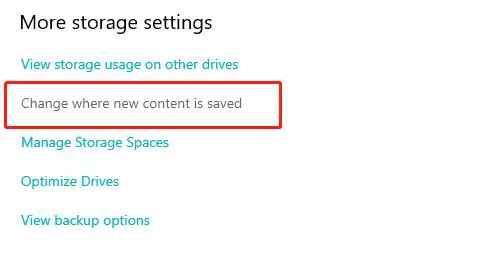
If the storage of Disk C is almost full, you can change the default save path of downloads to save the default disk space by selecting “Change where new content is saved” .
Way 4: Adjust system protection space
In Settings, search for View advanced system settings. Click on it and open its window.

Click on System Protection in the top menu bar. Select the available drive and click Configure. Use the slider to adjust the Max Usage.


Part 2: How to Free Up Storage on Mac
Way 1: Delete Applications or Cache Files
Open Applications Folder and delete the apps that you do not need any more. Also clear temporary cache files in Safari or other browsers and apps. It will free up some space.
Way 2: Clear Downloads Folder
Clean the downloaded files in Downloads regularly. For example, .dmg files after installing the application, zip files, files that have been viewed and no longer needed.

Way 3: Empty the Trash
Moving files to trash does not free up storage as they still take up disk space until you empty the Trash. Open Trash, and click on Empty button in the upper right. Click Empty Trash to confirm.

Way 4: Optimize storage space recommendations
Click the Apple Menu and go to About This Mac. Select Storage and then click on Manage.

You have three recommended options here to help you free up more storage. Storing files or photos in iCloud saves local space on your Mac. Optimize Storage can automatically remove unused videos or files. You can also turn on Empty Trash Automatically instead of emptying it manually as shown above.

Way 5: Restart Mac or update system
Restart your computer or update its system is helpful to clean up Mac storage too. Restarting your Mac can refresh the system and clear some application caches to free up disk space. You can also update macOS to optimize its operation. And you may have downloaded the macOS firmware but haven't installed it. Install the latest update to clean up storage.
Now you must free up enough storage to download the firmware package. Try to download it again and complete the removal process with 4uKey.
